| OPC DataHub™ : Version 6.4 | ||
|---|---|---|
 | Chapter 11. OPC to Linux |  |
| OPC DataHub™ : Version 6.4 | ||
|---|---|---|
| | Chapter 11. OPC to Linux | |
Table of Contents
You can access live OPC data in Linux, and write to an OPC server or client from any Linux program, using the OPC DataHub in Windows and the Cascade DataHub in Linux. The two DataHubs mirror data across a network connection or the Internet just like OPC Tunnelling.
![[Note]](images/note.gif) | The OPC DataHub tunnelling connection is sometimes referred to as a mirroring connection. Mirroring means that the data and any updates to that data on one DataHub are exactly mirrored across the network onto the other DataHub, and vice-versa. For all practical purposes, tunnelling and mirroring are identical. People working with OPC tend to use the term "tunnelling" while people from other backgrounds often say "mirroring". So Cogent uses "tunnelling" for the OPC DataHub, and "mirroring" for other Cogent products. |
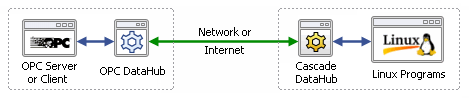
There are two steps to set this up:
![[Important]](images/important.gif) | If the Windows computer is going to act as the master, follow the first procedure. Otherwise, follow the second procedure. |
Configure the OPC DataHub as tunnelling master
 .
.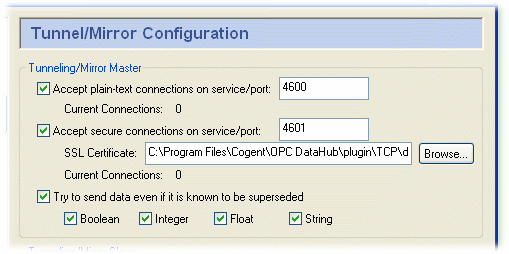
| To optimize throughput, un-check the Try to send data even if it is known to be superseded option. This will allow the DataHub to drop stale values for points which have already changed before the client has been notified of the original change. The latest value will always be transmitted. |
Configure the OPC DataHub as tunnelling slave
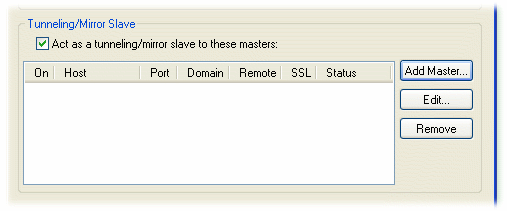
.
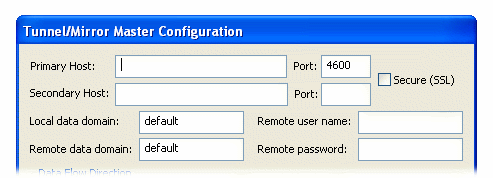
Primary Host: the name or IP address of the computer running the tunnelling master DataHub.
Port: the port number or service name for this host. You should use default port number (4600) unless you have changed the entry in the master DataHub.
Secondary Host: gives you the option to have an alternate host and service/port number. On startup or after a network break, the DataHub will search first for the primary host, then for the secondary host, alternating between primary and secondary until a connection is made. If no secondary host is specified, the connection will be attempted on the primary host only.
Local data domain: The data domain in which you plan to receive data.
Remote data domain: the master DataHub data domain from which you plan to receive data. Point names will be mapped from the remote data domain (on the master DataHub) into the local data domain (on this DataHub), and vice versa.
| Unless you have a good reason for making these different, we recommend using the same data domain name on both DataHubs for the sake of simplicity. |
| There is a DataHub running on Cogent's server that you can connect to for testing. Here are the parameters you will need to enter for it: Primary Host: developers.cogentrts.com Port: 4600 Local data domain: test Remote data domain: test |
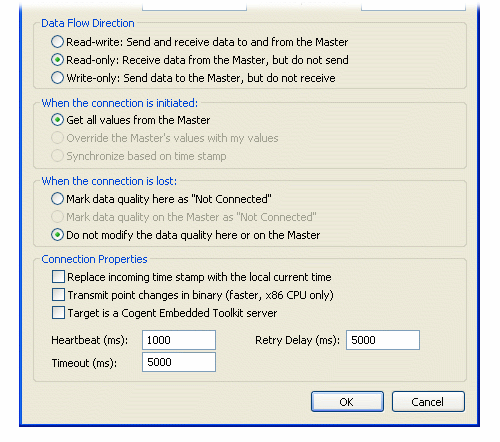
| To optimize throughput, check the Read-only: Receive data from the Master, but do not send option. Only do this if you actually want a read-only connection. If you do not require read-write access, a read-only tunnel will be faster. |
| If you have configured When the connection is initiated as (see above), then this option must be set to to get correct data synchronization. |
Replace incoming timestamp... lets you use local time on timestamps. This is useful if the source of the data either does not generate time stamps, or you do not trust the clock on the data source.
Transmit point changes in binary gives users of x86 CPUs a way to speed up the data transfer rate. Selecting this option can improve maximum throughput by up to 50%.
| For more information, please refer to Section 18.1, “Binary Mode Tunnel/Mirror (TCP) Connections”. |
Target is a Cogent Embedded Toolkit server allows this slave to connect to an Embedded Toolkit server rather than to another DataHub.
Heartbeat sends a heartbeat message to the master every number of milliseconds specified here, to verify that the connection is up.
Timeout specifies the timeout period for the heartbeat. If the slave DataHub doesn't receive a response from the master within this timeout, it drops the connection. You must set the timeout time at least twice the heartbeat time.
| To optimize this setting for slow networks, please refer to Section 18.2, “Tunnel/Mirror (TCP) Connections for Slow Networks”. |
Retry specifies a number of milliseconds to wait before attempting to reconnect a broken connection.
Now you are ready to configure the Cascade DataHub on Linux.
| |  | |
| Chapter 10. OPC to MES/ERP |  | 11.2. Configuring the Cascade DataHub on Linux |
Copyright © 1995-2010 by Cogent Real-Time Systems, Inc. All rights reserved.